
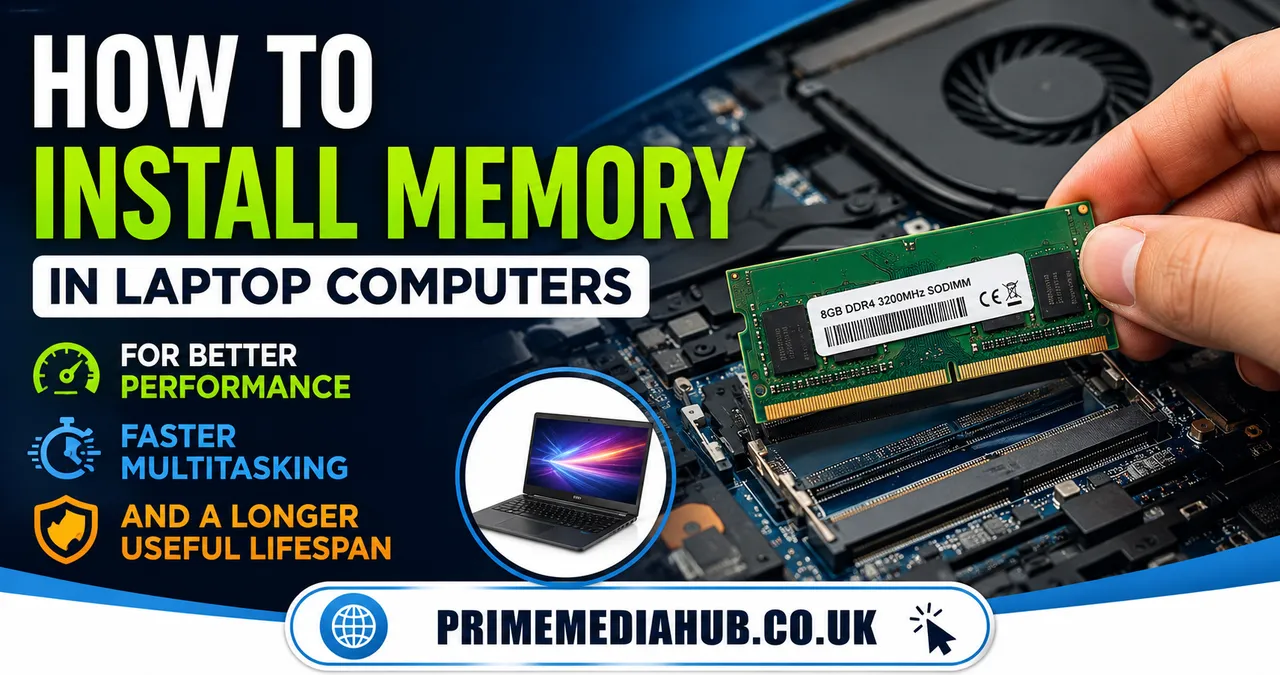
Upgrading laptop RAM is one of the most effective ways to improve overall system performance without replacing the entire device. Whether a laptop feels slow during multitasking, struggles with modern applications, or takes too long to switch between programs, additional memory can make a noticeable difference. Many users are surprised to discover that a memory upgrade often delivers better responsiveness than they expected, especially when the existing RAM capacity is limited.
Learning how to install memory in laptop systems is also far less complicated than many people assume. Most laptops are designed with accessible memory slots, and the installation process usually requires only a few basic tools and a little preparation. With the right information, even someone with limited hardware experience can complete the upgrade successfully.
Memory upgrades have remained popular because they provide an excellent balance between cost and performance. Compared to purchasing a new laptop, adding RAM is typically inexpensive while still delivering significant improvements in everyday computing tasks. From office productivity and web browsing to content creation and light gaming, sufficient memory helps a laptop operate more efficiently.
This guide covers everything needed to complete a successful RAM upgrade. It explains memory compatibility, preparation, installation procedures, troubleshooting techniques, performance benefits, and maintenance recommendations so that the process remains straightforward from start to finish.
Understanding Laptop Memory and Why It Matters
Random Access Memory, commonly called RAM, is the temporary workspace where a computer stores data that is actively being used. Unlike storage drives, which retain information permanently, RAM continuously holds and processes information required by running applications and the operating system. The more memory available, the more tasks a laptop can handle simultaneously without slowing down.
When RAM becomes limited, the system begins relying more heavily on virtual memory stored on the SSD or hard drive. Although modern storage devices are relatively fast, they are still significantly slower than physical memory. This difference often causes lag, longer loading times, reduced responsiveness, and slower multitasking performance.
Laptop memory comes in several generations, including DDR3, DDR4, and DDR5. Each generation offers different speeds, voltages, and compatibility requirements. Installing the wrong type generally prevents the system from functioning properly, making compatibility verification one of the most important steps before any upgrade.
Technology professionals often emphasize the value of sufficient memory. As hardware engineer Mark Russinovich once noted, “Performance bottlenecks often reveal themselves first through memory limitations.” While the exact needs vary by workload, modern operating systems and applications generally benefit from larger memory capacities than in previous years.
Signs That Your Laptop Needs a Memory Upgrade
Many laptop owners tolerate performance problems without realizing that insufficient RAM may be the primary cause. Understanding the symptoms can help determine whether a memory upgrade is appropriate.
One common sign is sluggish multitasking. A laptop may perform adequately with a single application open but become noticeably slower when multiple browser tabs, office programs, communication tools, and media applications run simultaneously. Frequent delays while switching between windows often indicate memory pressure.
Another indicator is excessive disk activity. When RAM is exhausted, the operating system uses storage space as temporary memory. This behavior can lead to constant SSD or hard drive activity even during relatively simple tasks. The result is slower responsiveness and increased waiting times.
Creative workloads frequently expose memory limitations. Photo editing, video editing, graphic design, software development, and virtual machine usage often consume substantial RAM. If projects take longer to load or applications become unstable during complex tasks, additional memory may provide meaningful improvements.
Gaming can also reveal memory shortages. While graphics processing power remains critical, insufficient RAM may contribute to stuttering, delayed texture loading, and inconsistent frame delivery. Modern games often recommend larger memory capacities than older titles, making upgrades increasingly valuable for gaming laptops.
Checking Compatibility Before Purchasing RAM
Before learning how to install memory in laptop hardware, it is essential to determine exactly what type of memory the system supports. Purchasing incompatible RAM remains one of the most common upgrade mistakes.
Laptop manufacturers typically publish specifications that identify supported memory standards, maximum capacities, slot configurations, and recommended speeds. These details can usually be found on the manufacturer’s website, within the user manual, or through support documentation.
System information tools can also help identify existing memory. Applications that display RAM specifications reveal current capacity, memory speed, slot usage, and module type. This information is useful when matching new memory to existing modules.
Several compatibility factors require attention:
| Compatibility Factor | Why It Matters |
|---|---|
| Memory Generation | DDR3, DDR4, and DDR5 are not interchangeable |
| Capacity Limit | The motherboard supports only a specific maximum RAM amount |
| Speed Rating | Determines memory performance and compatibility |
| Module Size | Laptops use SO-DIMM modules rather than desktop DIMMs |
| Slot Availability | Affects whether memory can be added or must replace existing modules |
| Voltage Requirements | Incorrect voltage may create instability |
Matching memory specifications generally reduces the risk of compatibility issues. Although systems often operate at the speed of the slowest installed module, using similar modules tends to provide more predictable results.
Careful research before purchase saves time, prevents returns, and increases the likelihood of a smooth upgrade experience.
Tools and Preparations Needed Before Installation
Preparing properly makes the installation process safer and more efficient. Fortunately, the required equipment is minimal.
A small precision screwdriver is typically the most important tool. Many laptops use small Phillips-head screws to secure the bottom panel or memory access compartment. Having the correct screwdriver prevents stripped screw heads and unnecessary frustration.
A clean, static-free workspace is equally important. Electronic components can be sensitive to electrostatic discharge. Working on a wooden table or another non-conductive surface helps reduce risk. Avoiding carpeted areas can further minimize static buildup.
Preparation usually includes:
- Backing up important data
- Powering off the laptop completely
- Disconnecting the charger
- Removing external devices
- Reviewing manufacturer instructions
- Organizing screws during disassembly
Many technicians recommend touching a grounded metal object before handling memory modules. This simple precaution helps dissipate static electricity that could potentially damage sensitive components.
Proper preparation creates a more organized workflow and reduces the likelihood of accidental mistakes during the upgrade.
Different Types of Laptop RAM and Their Characteristics
Understanding memory types helps buyers make informed decisions and avoid purchasing unsuitable hardware. Laptop memory has evolved significantly over the years, with each generation introducing improvements in speed, efficiency, and capacity.
DDR3 memory was widely used in older laptops and remains common in legacy systems. Although still functional, it generally provides lower performance and reduced efficiency compared to newer standards.
DDR4 became the dominant memory standard for many years. It offered increased bandwidth, improved energy efficiency, and broader capacity options. Many current laptops continue to rely on DDR4 memory because it provides an excellent balance of performance and affordability.
DDR5 represents the latest mainstream memory generation. It delivers higher speeds, greater bandwidth, and improved power management. Modern high-performance laptops increasingly incorporate DDR5 to support demanding workloads.
Memory speed also influences performance. Faster RAM can improve responsiveness in specific tasks, although real-world differences vary depending on application requirements. Capacity often has a larger practical impact than speed when upgrading systems with insufficient memory.
Selecting the correct memory type remains far more important than pursuing the highest available specifications. Compatibility should always take priority over theoretical performance gains.
How to Open a Laptop Safely Without Damaging Components
Physical access to memory slots varies considerably between laptop models. Some systems provide dedicated access panels, while others require removal of the entire bottom cover.
Before beginning, ensure the laptop is completely powered down rather than placed in sleep mode. Disconnecting all power sources reduces the risk of accidental electrical issues during installation.
Carefully removing screws and storing them in a secure location helps prevent confusion during reassembly. Some laptops use screws of different lengths, making organization particularly important.
Once the screws are removed, a plastic opening tool can help separate the bottom cover from the chassis. Metal tools should generally be avoided because they may scratch surfaces or damage clips. Gentle pressure works better than force when releasing retaining tabs.
Patience is critical during this stage. Rushing often causes broken clips, damaged panels, or cosmetic marks. A slow and methodical approach protects both the laptop and its internal components.
After gaining access to the internals, locating the memory slots is usually straightforward. RAM modules are typically positioned horizontally and secured by retention clips on either side.
How to Install Memory in Laptop Systems Step by Step
The actual installation process is often simpler than expected once the memory slots are accessible. Understanding how to install memory in laptop hardware correctly helps ensure reliable operation and avoids unnecessary troubleshooting later.
Begin by identifying the memory slot or slots. Existing modules can usually be removed by gently pushing the retention clips outward. The RAM module should rise at an angle, allowing it to slide out smoothly.
When handling memory modules, avoid touching the gold contacts. Holding the RAM by its edges minimizes contamination and reduces the chance of accidental damage.
To install the new memory module:
- Align the notch on the RAM with the slot key
- Insert the module at a slight angle
- Slide it fully into the connector
- Press downward until the retention clips lock into place
- Verify that both clips are securely engaged
The module should sit flat once properly installed. If it appears uneven or loose, remove it and repeat the installation process carefully.
After installing all memory modules, inspect the area for loose components or forgotten screws before reassembling the laptop. Proper seating is essential because partially installed memory often prevents successful booting.
For anyone researching how to install memory in laptop upgrades for the first time, this stage is usually the most important. Taking a few extra moments to verify proper placement can prevent many common issues.
Reassembling the Laptop After the Upgrade
Reassembly should be approached with the same care used during disassembly. Even though the memory installation may be complete, careless reassembly can introduce new problems.
Begin by replacing the bottom cover and ensuring all clips align correctly. Gentle pressure should secure the panel without excessive force. If resistance occurs, inspect the alignment rather than forcing components together.
Once the cover is seated properly, reinstall the screws in their original locations. Tightening screws evenly helps maintain structural integrity and prevents stress on the chassis.
After reconnecting the charger, power on the laptop and observe the startup process. Most systems automatically detect newly installed memory without requiring additional configuration. Some laptops may take slightly longer during the first boot as hardware changes are recognized.
Successful startup is a positive sign, but verification remains important. Checking system information confirms that the expected memory capacity is available and functioning correctly.
Completing reassembly carefully contributes to a professional-quality upgrade and helps ensure long-term reliability.
Verifying That the New Memory Is Working Properly
After installation, confirming proper operation is essential. Even if the laptop starts successfully, verification helps ensure the memory is functioning as intended.
The operating system usually displays installed RAM within system settings. Comparing the reported capacity to the expected total provides immediate confirmation that the upgrade was recognized.
Task management and performance monitoring tools can offer additional insight. These utilities display memory usage, available capacity, and operating characteristics that help validate successful installation.
Running memory diagnostics can provide further confidence. Built-in diagnostic tools and hardware testing utilities examine memory integrity and identify potential issues before they become serious problems.
When learning how to install memory in laptop upgrades, many users overlook the verification stage. However, confirming proper detection ensures the upgrade delivers its intended benefits and avoids future troubleshooting.
Monitoring performance during normal use is also worthwhile. Improved multitasking responsiveness, faster application switching, and reduced lag often become noticeable almost immediately after a successful upgrade.
Common Problems and Troubleshooting Solutions
Even straightforward memory upgrades occasionally encounter complications. Fortunately, most issues can be resolved through systematic troubleshooting.
A laptop that fails to start after installation often indicates improperly seated RAM. Removing and reinstalling the module carefully resolves many startup problems. Verifying that retention clips are fully engaged is particularly important.
Compatibility issues may also prevent successful operation. Memory generation mismatches, unsupported capacities, or incompatible speed ratings can create boot failures or instability.
Common symptoms include:
- Black screen during startup
- Repeated reboot cycles
- Error messages
- Random crashes
- System freezes
- Inconsistent performance
Testing modules individually can help isolate faults. Installing one module at a time often identifies whether a specific RAM stick or slot is responsible for the issue.
Updating the system BIOS may improve compatibility with certain memory configurations. Manufacturers occasionally release firmware updates that enhance hardware support and stability.
For users practicing how to install memory in laptop upgrades for the first time, troubleshooting is a normal part of the learning process and should not be viewed as a sign of failure.
Performance Benefits After a Successful Upgrade
The improvements resulting from additional memory vary depending on workload, but many users notice substantial gains in daily responsiveness.
Web browsing becomes smoother when numerous tabs remain open simultaneously. Modern websites often consume significant memory resources, making RAM upgrades particularly beneficial for heavy browser users.
Office productivity tasks also benefit. Switching between spreadsheets, documents, communication platforms, and research materials becomes more fluid when sufficient memory is available.
Creative professionals frequently experience some of the most dramatic improvements. Large image files, video timelines, design projects, and development environments often consume substantial memory resources. Additional RAM helps reduce bottlenecks and supports more efficient workflows.
Gamers may notice fewer performance interruptions and improved consistency during gameplay. While RAM alone does not transform a system into a high-end gaming machine, it can eliminate memory-related limitations that negatively affect performance.
The cumulative effect of these improvements often makes an older laptop feel significantly more capable and enjoyable to use.
Memory Capacity Recommendations for Different Users
Determining the ideal amount of memory depends largely on intended usage patterns. Different workloads place varying demands on system resources.
Light users who primarily browse the web, check email, stream media, and perform basic office tasks can often operate comfortably with modest memory capacities. However, modern software trends increasingly favor larger configurations.
Students and professionals who multitask regularly typically benefit from higher memory capacities. Running multiple productivity applications simultaneously becomes more practical when adequate RAM is available.
Content creators, developers, engineers, and power users often require substantially more memory. Large projects, virtual machines, advanced editing software, and professional applications can consume significant resources.
General guidelines include:
- 8 GB for basic everyday computing
- 16 GB for mainstream productivity and multitasking
- 32 GB for advanced creative workloads
- 64 GB or more for specialized professional applications
Choosing the right capacity helps balance cost and performance while ensuring sufficient resources for future software demands.
Best Practices for Long-Term Memory Reliability
A memory upgrade represents an investment in system performance, making reliability an important consideration. Following best practices helps maximize longevity and stability.
Quality memory modules from reputable manufacturers generally provide better consistency, compatibility, and support. While low-cost options may appear attractive, established brands often deliver greater reliability over time.
Keeping the laptop clean also contributes indirectly to memory health. Excessive heat can affect overall system stability, making regular dust removal beneficial. Maintaining proper airflow supports consistent performance during demanding workloads.
Periodic system monitoring can reveal potential issues before they become serious. Unexpected crashes, recurring errors, or unusual instability may indicate hardware concerns that warrant investigation.
Technology consultant Patrick Moorhead has remarked, “Reliability is often the result of proper planning rather than luck.” Selecting compatible hardware, installing it correctly, and maintaining the system responsibly all contribute to long-term success.
Users who master how to install memory in laptop hardware properly often discover that their upgraded systems remain productive and dependable for years beyond their original expectations.
Cost Considerations and Upgrade Value
One reason memory upgrades remain popular is their exceptional value. Compared to many other hardware improvements, RAM upgrades frequently provide substantial benefits at a relatively modest cost.
The exact price depends on capacity, generation, speed, and market conditions. Newer standards such as DDR5 typically command higher prices than older alternatives. Nevertheless, memory upgrades usually remain far less expensive than purchasing a replacement laptop.
Evaluating value requires considering workload requirements. Users experiencing frequent slowdowns due to limited RAM often receive immediate and noticeable benefits. In such situations, the performance gains can significantly outweigh the upgrade cost.
Extending the useful life of an existing laptop also represents meaningful savings. Rather than replacing an otherwise functional system, additional memory can postpone major hardware purchases and improve productivity in the meantime.
For budget-conscious users, few upgrades offer a combination of affordability, accessibility, and practical impact comparable to increased memory capacity.
Conclusion
Understanding how to install memory in laptop hardware is a valuable skill that can dramatically improve system responsiveness, multitasking capability, and overall user experience. A memory upgrade is often one of the simplest and most cost-effective ways to extend the life of a laptop while reducing performance frustrations.
Success begins with compatibility research, careful preparation, and proper handling of components. Once the correct memory is selected, installation typically requires only a short amount of time and a few basic tools. Verifying functionality afterward ensures that the upgrade delivers the expected benefits.
Whether the goal is smoother productivity, better gaming performance, faster creative workflows, or improved everyday responsiveness, additional RAM can make a significant difference. By following best practices and understanding the process thoroughly, laptop owners can confidently complete upgrades and enjoy a more capable system for years to come.
FAQ
How much RAM should I install in my laptop?
The ideal amount depends on your workload. Basic computing tasks generally work well with 8 GB, while 16 GB is a strong choice for multitasking and productivity. Creative professionals and advanced users may benefit from 32 GB or more depending on application requirements.
Can I learn how to install memory in laptop models without technical experience?
Yes. Most laptops are designed to make memory upgrades relatively straightforward. With proper preparation, compatibility checks, and careful handling of components, many first-time users successfully complete RAM installations.
Will installing more RAM make my laptop faster?
Additional memory can improve performance when the existing RAM is insufficient. Users often experience smoother multitasking, faster application switching, reduced lag, and better overall responsiveness after a successful upgrade.
What happens if I install incompatible memory?
Incompatible RAM may prevent the laptop from booting, cause instability, generate errors, or simply fail to be recognized by the system. Verifying specifications before purchase helps avoid these issues.
Is it better to add RAM or replace existing modules?
The answer depends on available slots and current capacity. If an empty slot exists, adding memory may be sufficient. If all slots are occupied, replacing existing modules with higher-capacity versions may be necessary.
How can I verify that a memory upgrade was successful?
After installation, check the operating system’s system information to confirm the detected memory capacity. Running diagnostic tools and monitoring normal performance can provide additional confirmation that the upgrade is functioning correctly.
How often do laptop memory modules fail?
RAM is generally very reliable and often lasts for many years. Failures are relatively uncommon when quality modules are installed correctly and operated within normal temperature ranges. Regular system stability and error-free operation usually indicate healthy memory.